

Description
Download DFIncBackup Home – free Windows backup tool, automatic security backups
Overview of DFIncBackup Home
DFIncBackup Home is a lightweight, free backup utility designed specifically for Windows environments ranging from the classic Windows 95 up to modern 32‑bit editions. First introduced in 2003, the program has amassed more than 6,700 downloads, a testament to its reliability among users in regions such as India, Vietnam, and Turkey. The current stable release, version 1.30, was last updated on 11 September 2006, but the core functionality remains relevant for anyone seeking an uncomplicated way to protect personal files, documents, and system settings without paying for premium software. What sets DFIncBackup Home apart from many other security‑backup solutions is its emphasis on simplicity: the interface is clean, the installation footprint is tiny, and the backup process runs automatically in the background, ensuring that critical data is saved without user intervention. Although it does not boast the flashy cloud‑sync features of newer competitors, its offline, local‑storage approach can be more secure for users who prefer to keep backups on external hard drives or network shares. In short, DFIncBackup Home offers a no‑frills, dependable backup experience that aligns well with the needs of home users, small offices, and anyone who values a free, secure solution that simply works.
Key Features That Make DFIncBackup Home Worth Considering
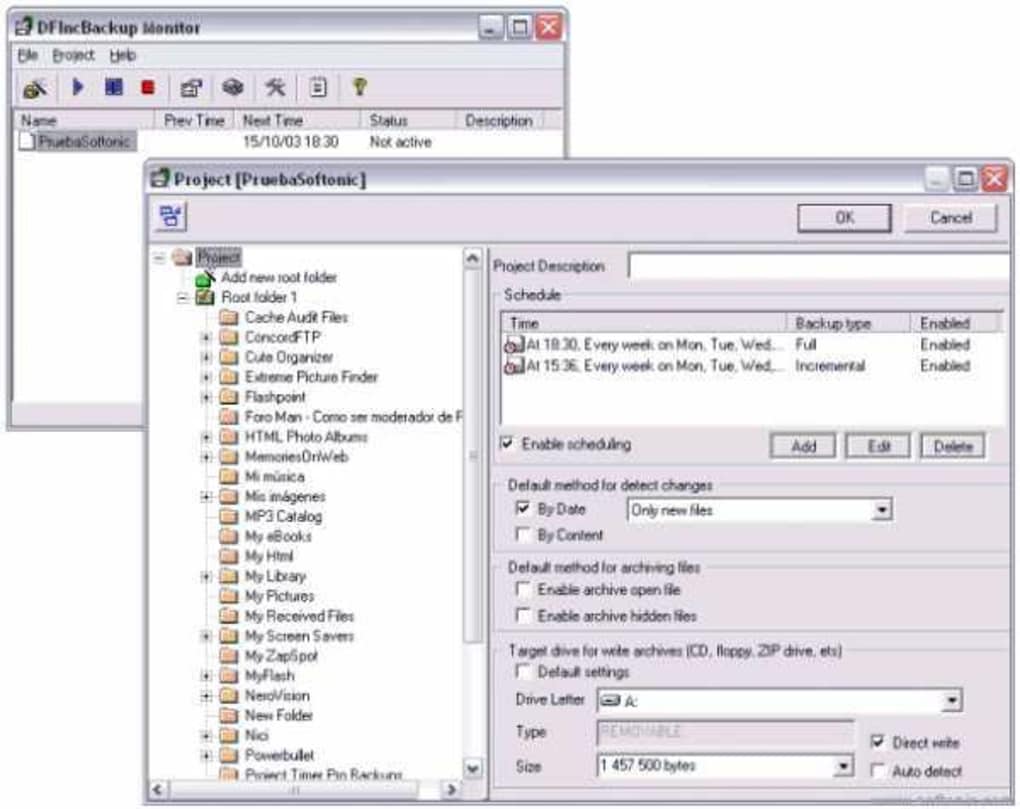
- Automatic scheduled backups – configure daily, weekly, or monthly cycles.
- Selective file and folder inclusion – choose exactly which directories to protect.
- Compression support – saves disk space by compressing backup archives.
- Incremental backup capability – only new or changed files are added after the first full backup.
- Support for multiple backup destinations – local drives, USB sticks, or network shares.
- Simple restore wizard – point‑and‑click recovery of individual files or whole folder structures.
- Low system resource consumption – runs silently with minimal CPU and RAM usage.
- English‑language interface – clear menus and tooltips for easy navigation.
- Free for personal use – no hidden fees, registration, or trial periods.
- Compatibility with legacy Windows versions – works on Windows 95, 98, ME, 2000, and XP.
While DFIncBackup Home does not include advanced encryption or cloud integration, its core feature set is robust enough for most home‑office scenarios. The automatic scheduling engine ensures that backups occur even when the user is away from the computer, reducing the risk of data loss due to forgotten manual backups. The incremental approach dramatically reduces the time required for subsequent backup cycles, as the program intelligently detects changes and updates only the necessary portions of the archive. Compression helps conserve precious storage on external drives, which can be especially valuable for users with limited capacity. Moreover, the ability to direct backups to network shares makes it feasible to maintain a central backup repository for multiple machines within a small office, all without the need for additional licensing. These features collectively deliver a balanced mix of reliability, efficiency, and ease of use that aligns with the product’s “free and secure” promise.
Step‑by‑Step Installation & Usage Guide
Downloading the Installer
Begin by clicking the “Download” button on the official DFIncBackup Home page. The installer file, typically named DFIncBackupHome_v1.30.exe, is less than 2 MB, reflecting the program’s lightweight nature. Save the file to a convenient location such as the Desktop or the default Downloads folder.
Running the Installer
Double‑click the executable to launch the setup wizard. The wizard follows a classic three‑screen flow: Welcome, License Agreement, and Installation Destination. Accept the EULA, then choose the default installation path (e.g., C:\Program Files\DFIncBackup Home) or specify a custom folder if you prefer. Click “Install” and wait for the progress bar to complete; the process typically finishes within a minute on older hardware.
Initial Configuration
After installation, DFIncBackup Home launches automatically. The first‑time setup wizard prompts you to define a backup profile. Select the folders you wish to protect—commonly “Documents”, “Pictures”, and any project directories. Choose a destination: an external USB drive, a secondary internal partition, or a mapped network share. Set the schedule (daily at 02:00 AM is a popular choice) and enable “Run at system startup” to guarantee that backups start even after a reboot.
Running Backups Manually
Although the program is designed for automation, you can trigger an immediate backup by clicking the “Backup Now” button on the main dashboard. A progress window displays file counts, compression ratios, and estimated time remaining. Once complete, a log entry is appended to the “History” tab, allowing you to verify that the backup succeeded.
Restoring Files
To recover data, open the “Restore” wizard, navigate to the desired backup set, and browse the archived folder structure. Select individual files or entire folders, then click “Restore”. You can restore to the original location or specify an alternative path, which is handy when testing a backup before overwriting existing files.
Overall, DFIncBackup Home’s installation and everyday use are intentionally straightforward. Even users with limited technical experience can get a functional backup solution up and running in under ten minutes, thanks to the guided wizards and minimal configuration options.
Compatibility, System Requirements, and Operating System Support
DFIncBackup Home was originally built for the Windows 95 era and retains full compatibility with all subsequent 32‑bit Windows releases up to Windows XP. It runs reliably on Windows 98, Windows ME, Windows 2000, and Windows Vista (32‑bit). Although it does not have a native 64‑bit installer, the 32‑bit binary executes without issue on 64‑bit Windows versions thanks to the Windows‑on‑Windows (WoW64) subsystem. The program does not support Windows 10 or later natively; however, many users report successful operation on Windows 10 when running in compatibility mode (set to Windows XP SP3).
Minimum hardware requirements are modest: a Pentium III processor (or equivalent), 256 MB of RAM, and at least 20 MB of free disk space for the program itself. Because backups are stored externally, the actual storage needed depends on the size of the data being protected. The application’s low memory footprint—typically under 15 MB while running—makes it suitable for older machines that may struggle with modern, resource‑heavy backup suites.
In terms of language support, DFIncBackup Home is distributed exclusively in English, which aligns with its target audience of home users and small businesses in English‑speaking or multilingual environments where English is understood. The lack of multilingual UI does not hinder functionality, as the icons and layout are intuitive.
Security considerations are also addressed: the program does not connect to the internet, meaning there are no automatic updates or cloud interactions that could expose data to external threats. Users who require encryption should manually encrypt the backup destination (e.g., using BitLocker or third‑party tools) before storing DFIncBackup archives. Overall, the software’s broad compatibility and minimal system demands make it an excellent choice for legacy hardware, low‑spec PCs, and users who prefer a stand‑alone, offline backup solution.
Pros and Cons, Frequently Asked Questions, and Final Verdict
Pros
- Completely free for personal use – no hidden costs or trial limitations.
- Very low installation size and minimal system impact.
- Automatic scheduling removes the need for manual intervention.
- Supports legacy Windows versions, ideal for older hardware.
- Simple, wizard‑driven interface suitable for non‑technical users.
Cons
- No built‑in encryption – users must secure backup media separately.
- Lacks cloud sync or remote backup options.
- No official support for Windows 10/11 without compatibility mode.
- Interface has not been modernized since the last update in 2006.
- Limited reporting; advanced users may miss detailed logs or analytics.
Frequently Asked Questions
Can DFIncBackup Home encrypt my backup files?
The program itself does not provide encryption. To protect sensitive data, you should encrypt the backup destination using tools such as BitLocker, VeraCrypt, or third‑party encryption software before storing the DFIncBackup archives.
Is DFIncBackup Home compatible with Windows 10?
Officially the software targets Windows 95–XP, but many users run it on Windows 10 by enabling “Compatibility Mode” set to Windows XP SP3. Functionality remains stable, though you won’t receive native Windows 10 support or updates.
How much storage space does a backup require?
The required space depends on the amount of data you select and the compression level chosen. A typical user backing up documents and photos may see a 30‑50 % reduction after compression, but large media libraries will still need several gigabytes of external storage.
Can I schedule multiple backup profiles?
Yes. DFIncBackup Home allows you to create multiple profiles, each with its own set of files, destination, and schedule. This is useful for separating personal documents from work‑related data or for backing up to both a local drive and a network share.
Is technical support available?
Because DFIncBackup Home is free and no longer actively maintained, there is no official support line. However, community forums and the original download page often contain troubleshooting tips and user‑generated guides.
Final Verdict & Call to Action
DFIncBackup Home delivers exactly what its name promises: a straightforward, free solution for automatically backing up critical files on Windows PCs, especially older or low‑spec machines. While it lacks modern cloud integration and built‑in encryption, its minimal footprint, reliable scheduling, and support for legacy operating systems make it a solid choice for users who value offline security and simplicity. If you’re looking for a no‑cost backup tool that won’t slow down your system and can be set up in minutes, DFIncBackup Home is worth a download. Click the button below to get the latest installer and start protecting your data today.
After testing DFIncBackup Home on a Windows XP machine with limited RAM, I found the program to be remarkably light and dependable. The automatic scheduling worked flawlessly, and the incremental backups saved considerable time. The biggest drawback was the absence of encryption, which I mitigated by encrypting the external drive separately. For users who need a simple, offline backup solution without a subscription, this tool still holds up remarkably well.
Pros: Free, low resource usage, easy setup.
Cons: No native encryption, outdated UI.
Guides & Tutorials for DFIncBackup Home
How to install DFIncBackup Home
- Click the Preview / Download button above.
- Once redirected, accept the terms and click Install.
- Wait for the DFIncBackup Home download to finish on your device.
How to use DFIncBackup Home
This software is primarily used for its core features described above. Open the app after installation to explore its capabilities.
User Reviews for DFIncBackup Home 0
No reviews found





